

Download a planned-item template
Open a budget, load its planned items, and tap Download template. Save the .xlsx file in the device file picker. It is an example layout, not a backup of that budget.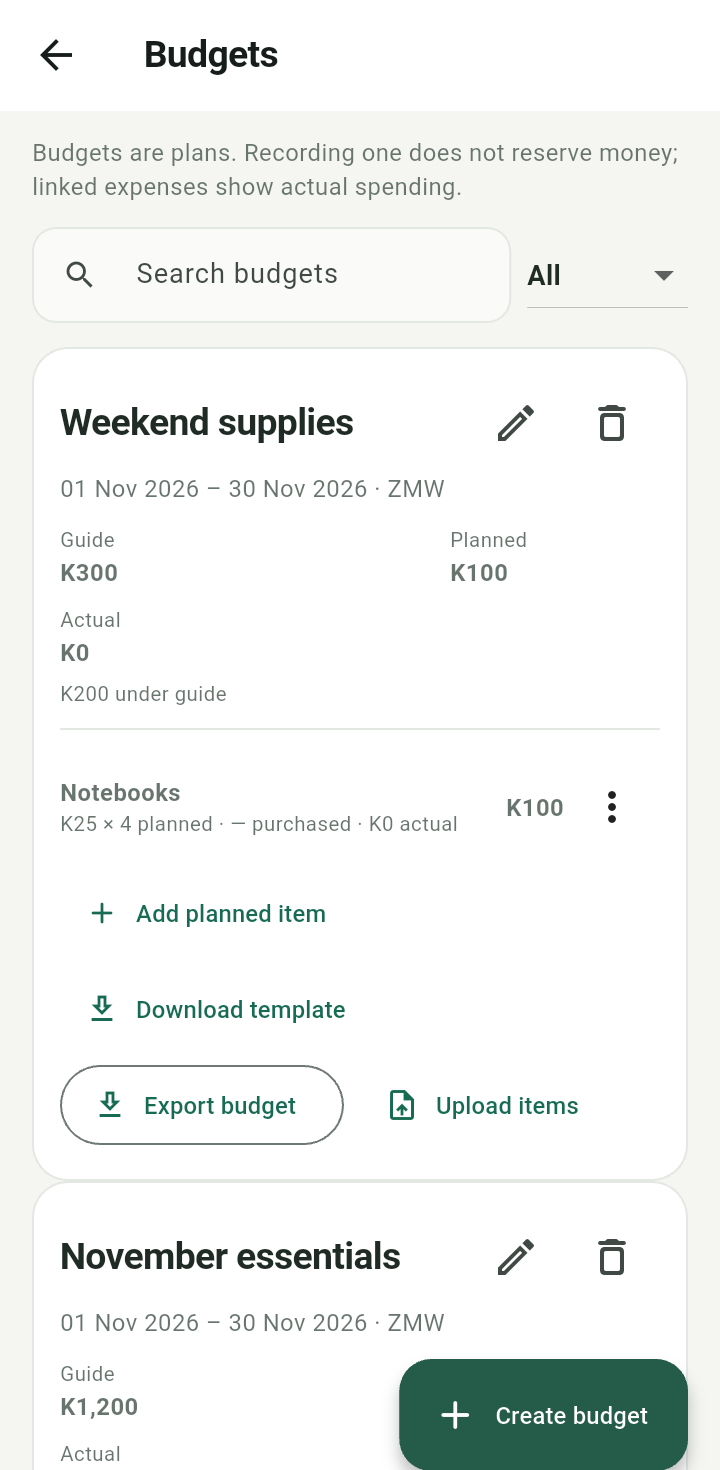
Expanded budget with Download template, export, and Upload items actions
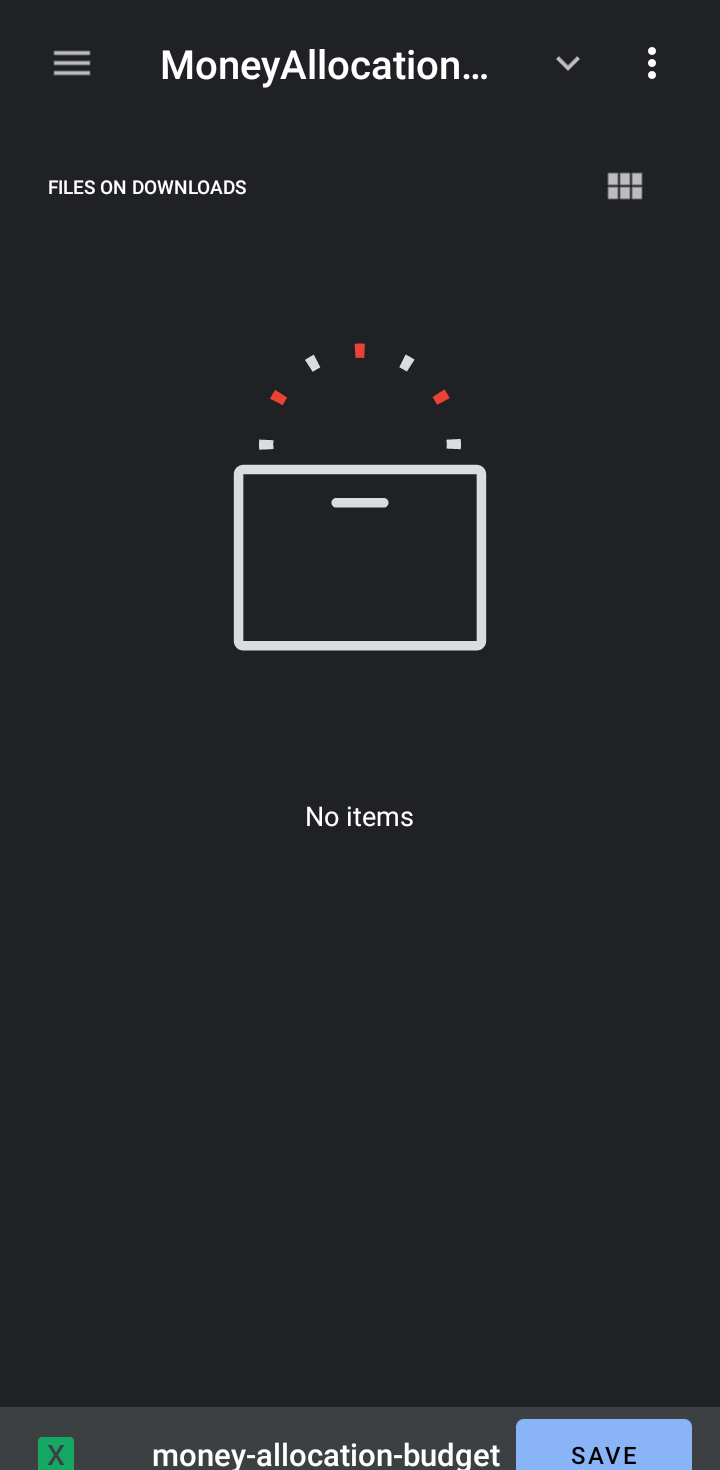
Device file picker saving the budget-item template
Upload planned items
Fill a copy of the template with item names, unit prices, and quantities. Tap Upload items, choose the workbook, and review Review budget items. The preview identifies skipped invalid rows. Tap Import items to append valid rows; existing items remain unchanged.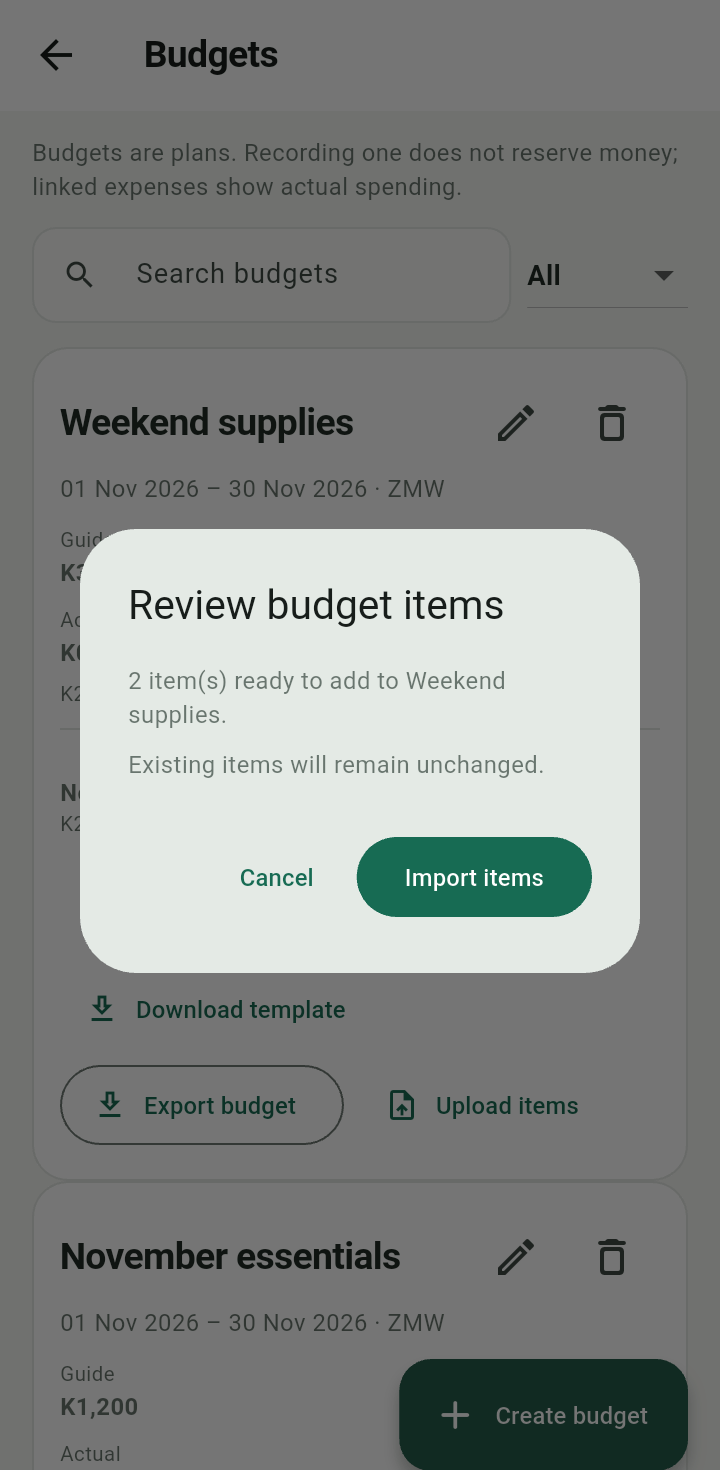
Review budget items dialog before importing valid workbook rows
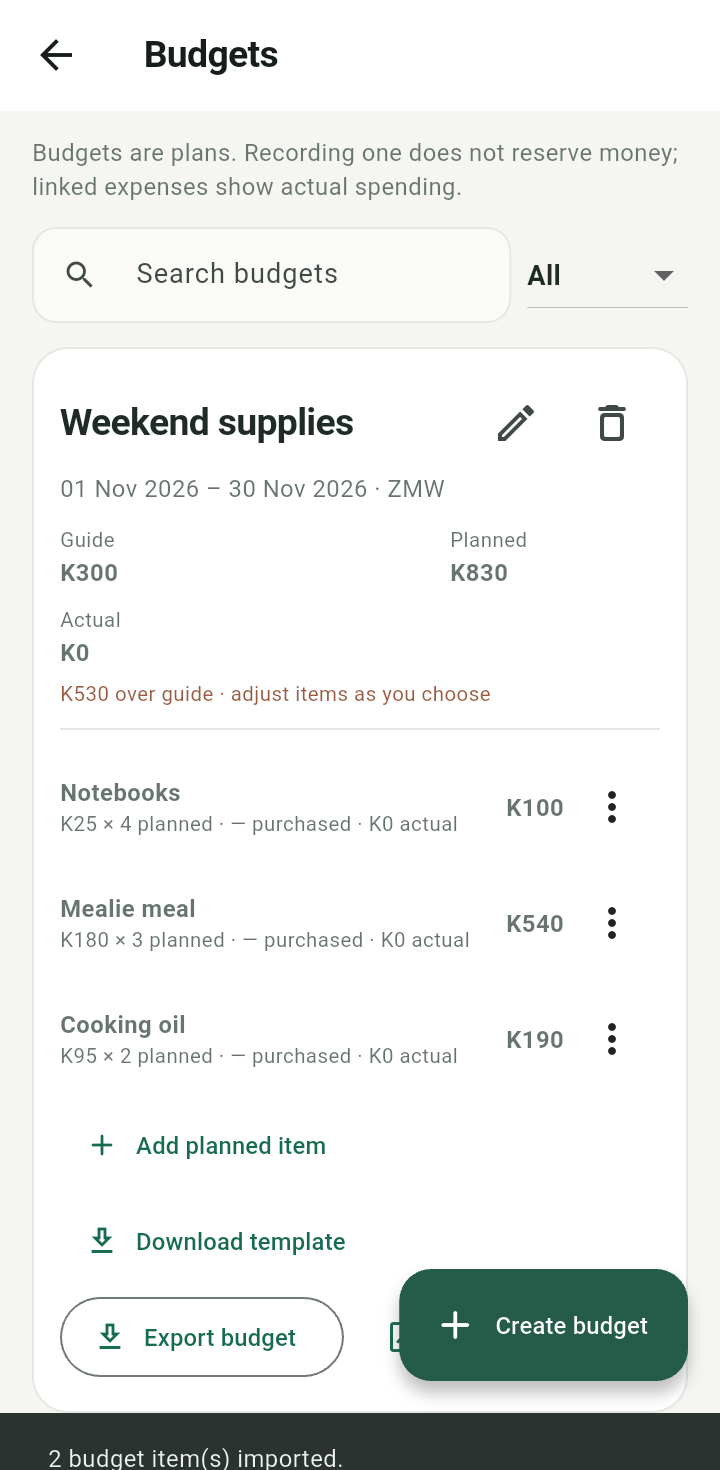
Budget item list after importing a fictional planned item
Export the actual budget
Use the budget’s export action and choose where to save. This fetches the latest complete budget details and exports the actual plan and purchase information in its native currency. It is different from Download template.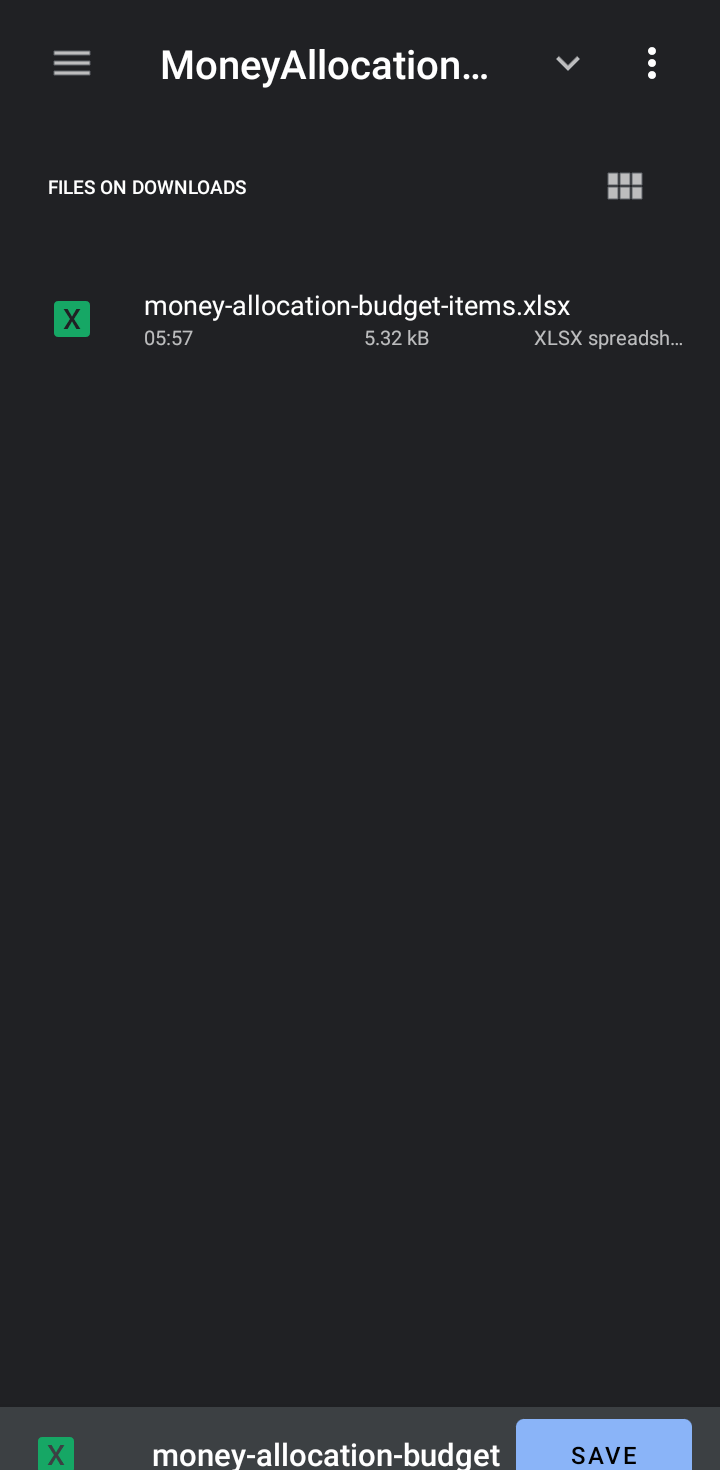
Device file picker saving the actual budget workbook
The export does not rewrite the budget or change any balances.