

Open Budgets
Tap plus, then Budget. Type in Search budgets and submit with the keyboard Search key. Use the currency filter to find a saved plan; Load more budgets appears when more results are available.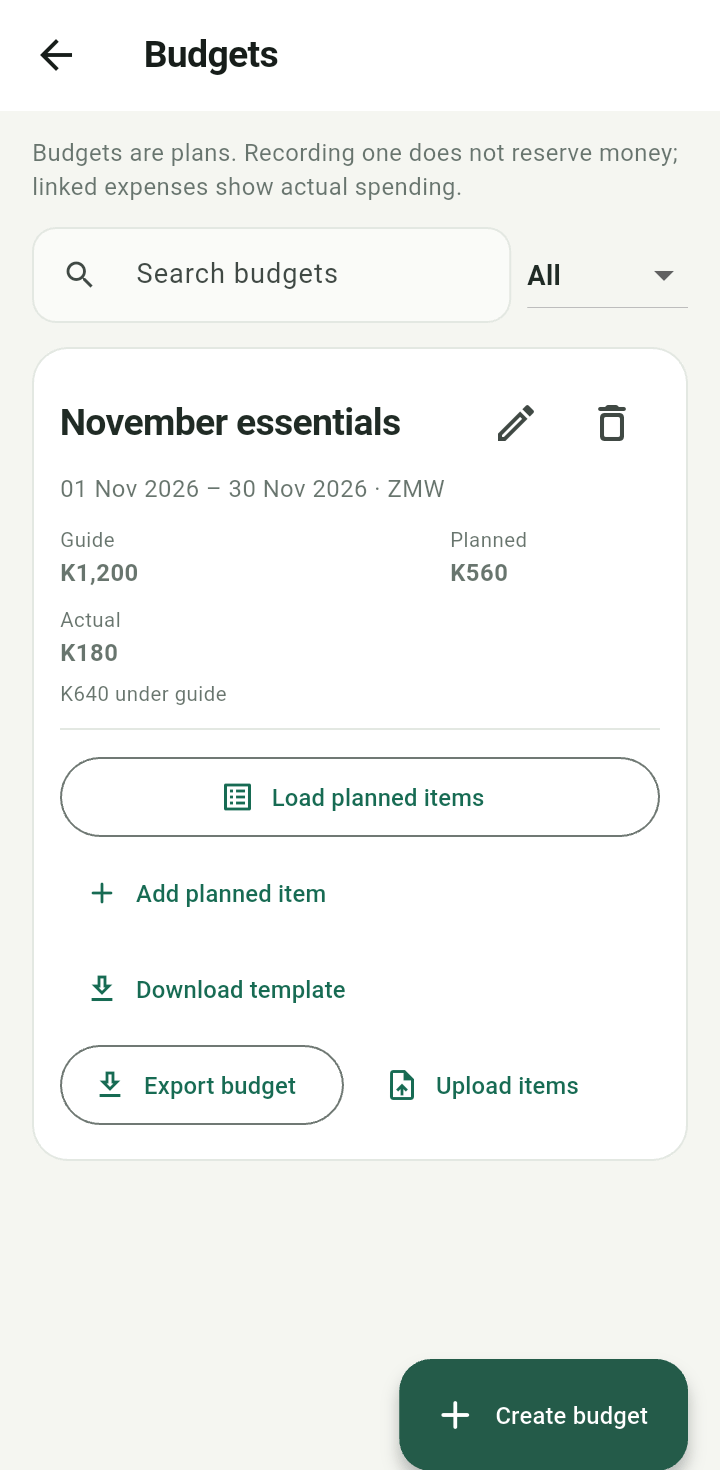
Budgets list with search, currency filter, and a demonstration budget
Create or edit a budget
- Tap Create budget.
- Enter its name and guide amount, choose the date range and currency.
- Optionally select linked buckets for reference.
- Tap Create budget. Use the pencil action later to Edit budget and Save budget.
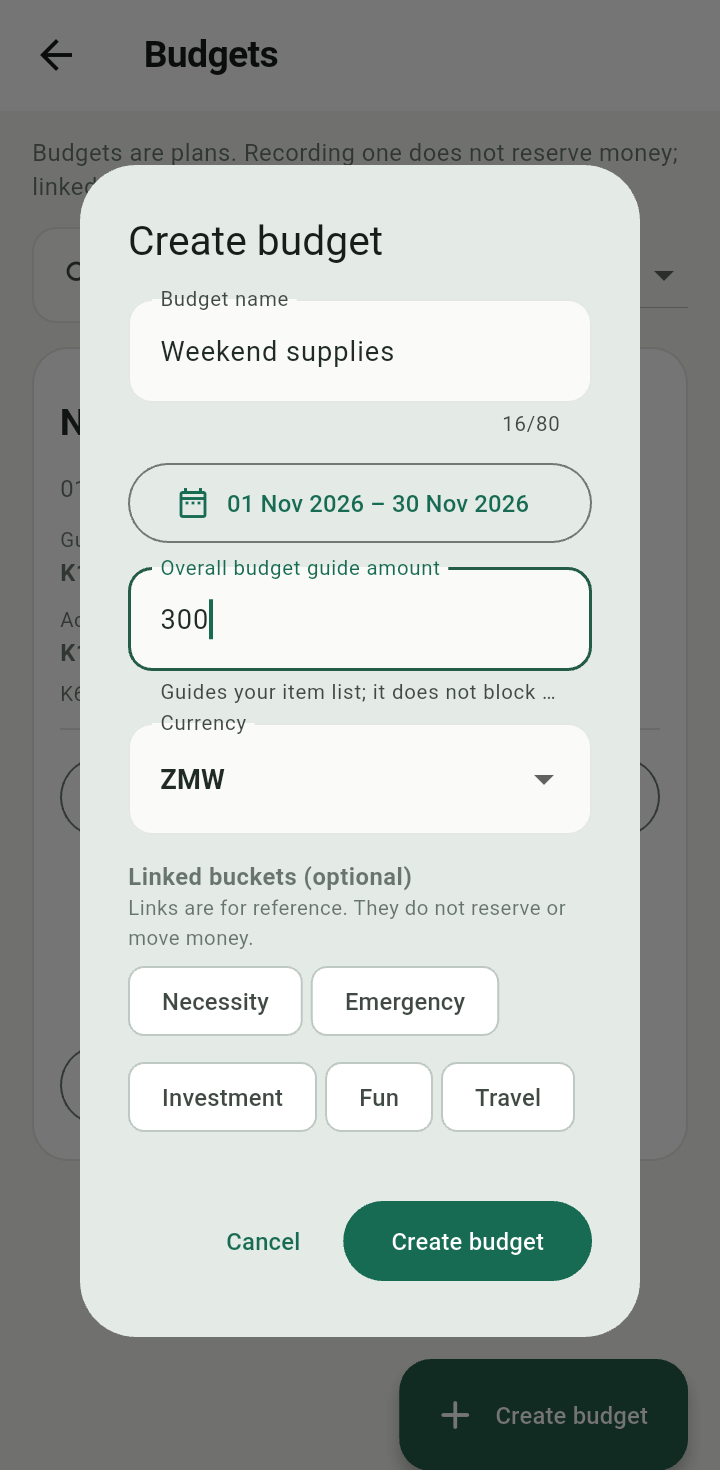
Create budget dialog with date range, currency, guide amount, and optional bucket links
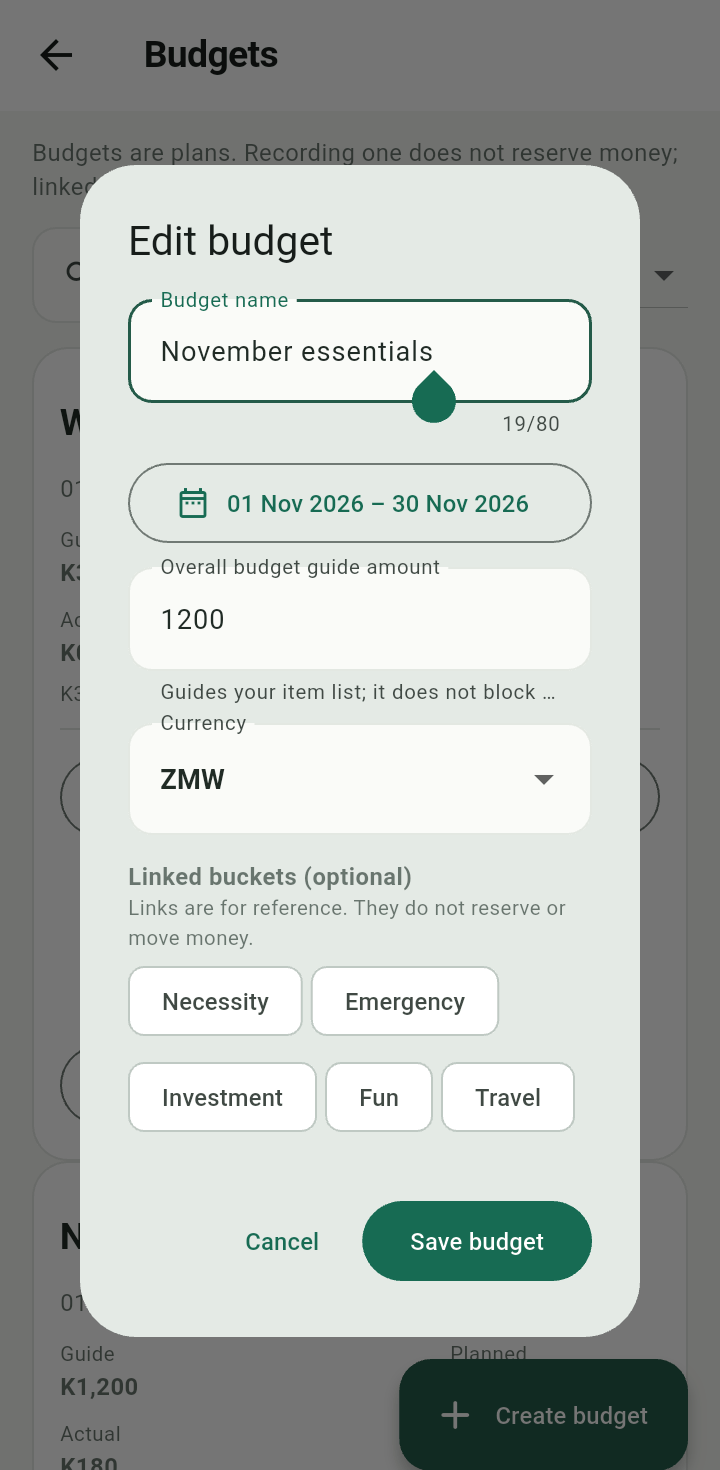
Edit budget dialog
A budget is an independent plan. Linking a bucket neither reserves funds nor moves money. A date range is not restricted to a calendar month.
Add planned items
Expand the budget or tap Load planned items. Tap Add planned item, enter Item, the planned unit price, and quantity, then save. Planned total is unit price multiplied by quantity.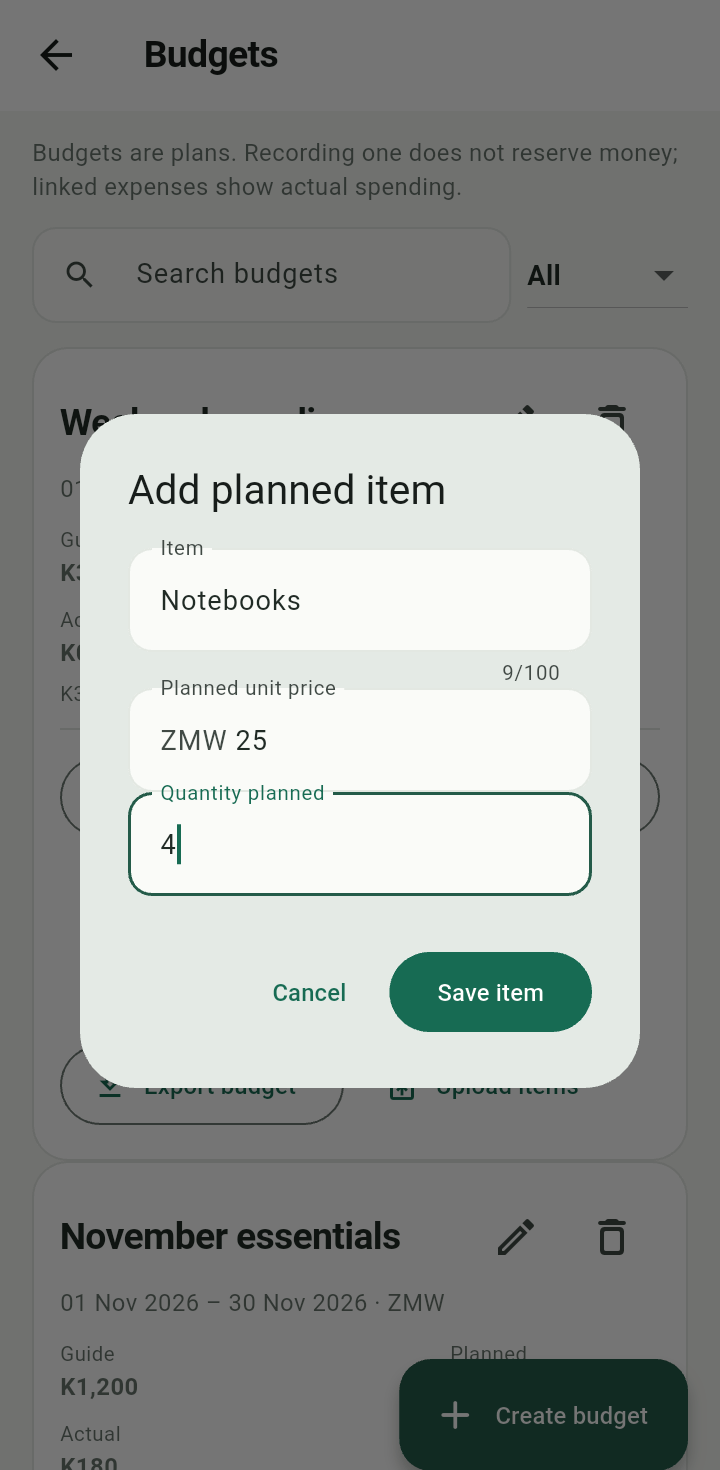
Add planned item dialog
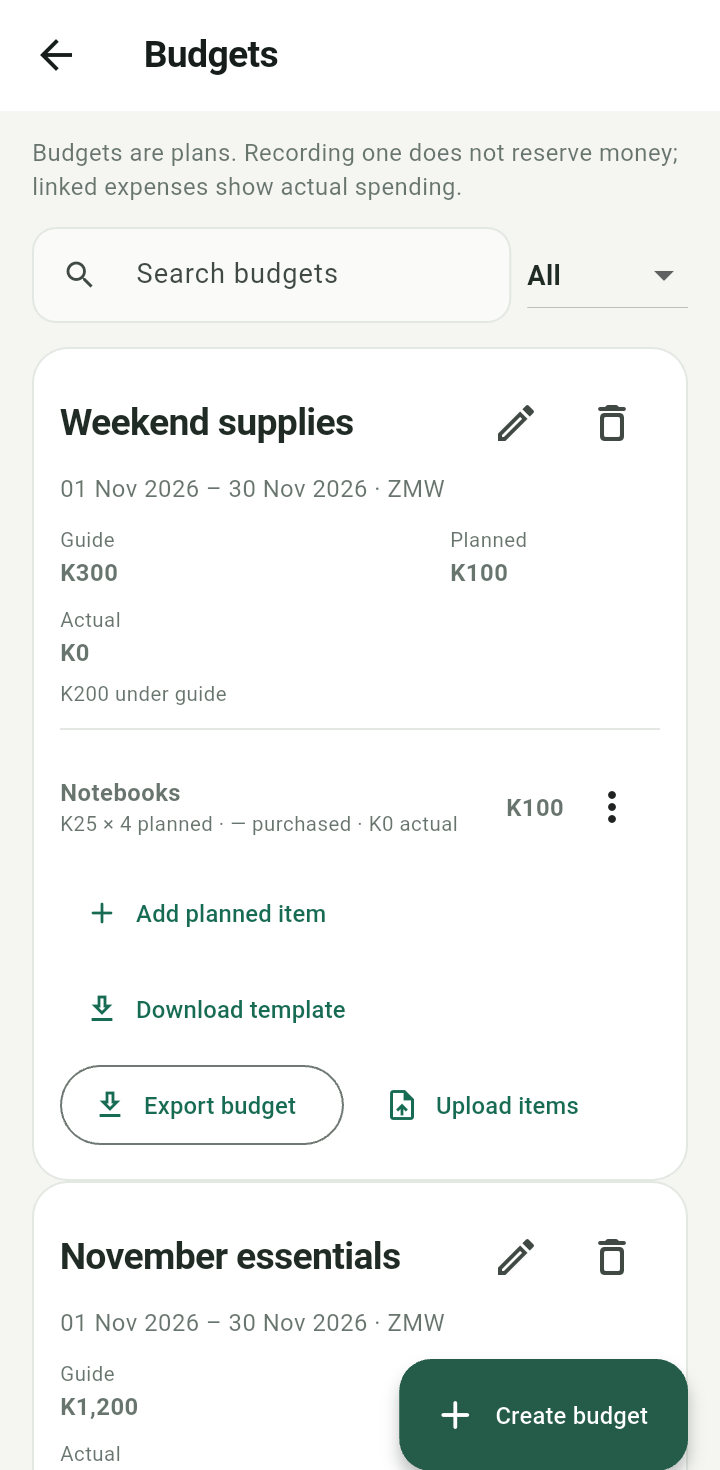
Budget with its planned items and actual spending
Use an item’s Edit or Remove menu when the plan changes. Removal is confirmed. Items with linked spending may be protected from removal; read the app’s response.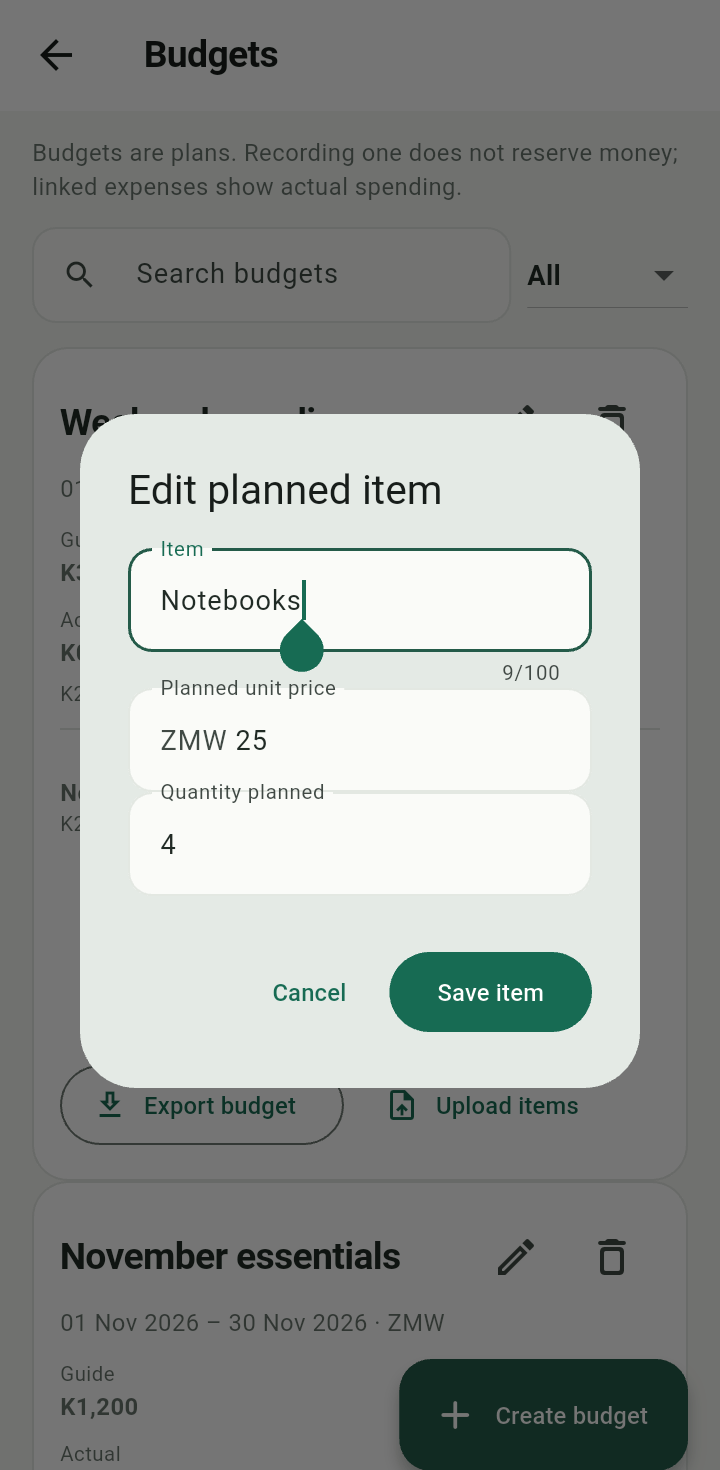
Edit planned item dialog
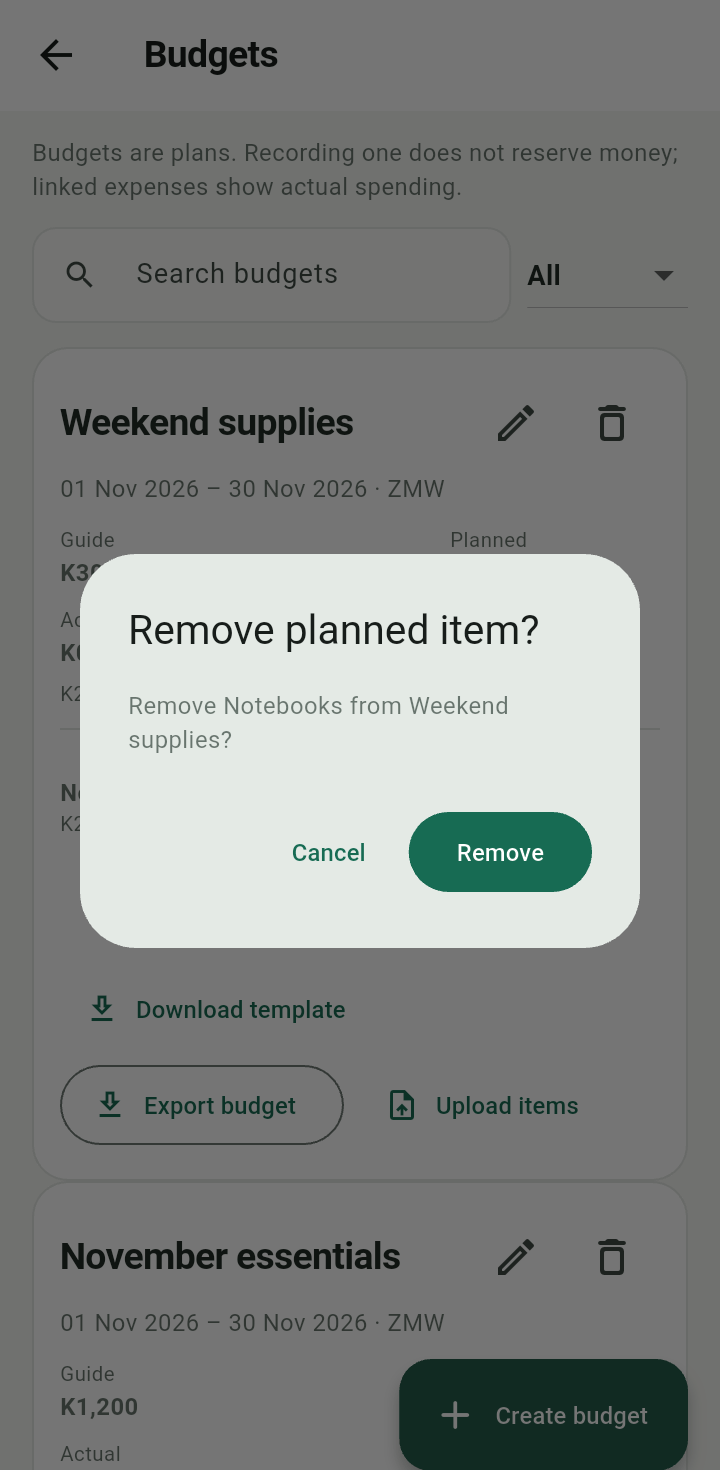
Remove planned item confirmation
Delete a budget
Tap its delete icon and review Delete budget? before confirming. Deleting a plan is not an expense refund.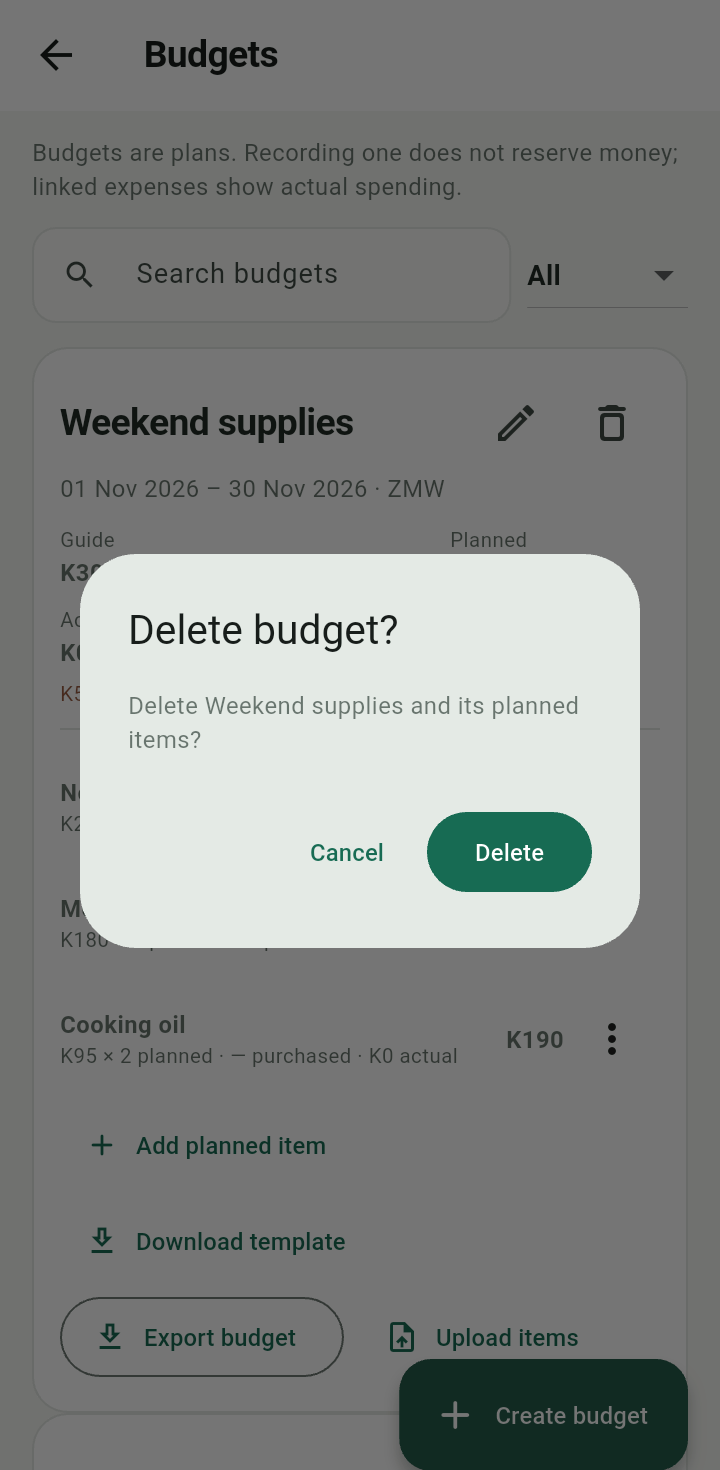
Delete budget confirmation
See Excel tools for importing planned items and exporting the actual budget.